Image Optimization
Image optimization is one of the easiest ways to reduce page weight.
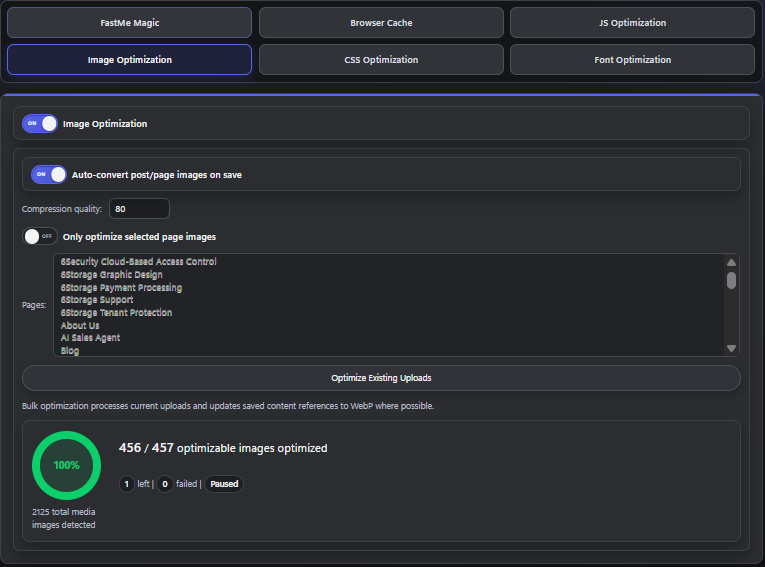
This area may include options related to:
image compression
next-generation formats such as WebP
background image handling
batch optimization for existing media
Auto-Optimize New Uploads
This usually means newly uploaded media can be optimized automatically.
Good for:
active blogs
stores with frequent product image uploads
teams that want consistent media handling
Use caution if:
designers upload assets that must remain pixel-perfect
your workflow already depends on external optimization tools
Compression Quality
Higher compression reduces file size more aggressively, but can reduce image quality.
Recommended approach:
use moderate compression first
test photography, logos, product images, and screenshots separately
avoid pushing compression too far on brand assets
Optimize Existing Uploads
This is useful on older websites with large media libraries.
Before running a bulk optimization:
take a backup
confirm enough server resources are available
do not start during peak traffic if the site is resource-limited
If bulk work feels slow, that does not always mean failure. Large libraries can take time, and some hosts limit background processing speed.
WebP Notes
WebP can be beneficial, but only if delivery is stable.
If WebP images appear broken:
confirm the original source image still exists
confirm the optimized version was created successfully
purge plugin cache and CDN cache
test image URLs directly
temporarily disable WebP delivery to confirm the issue source
If disabling WebP fixes the issue, leave it off until the affected image set is cleaned up or regenerated.
Continue reading